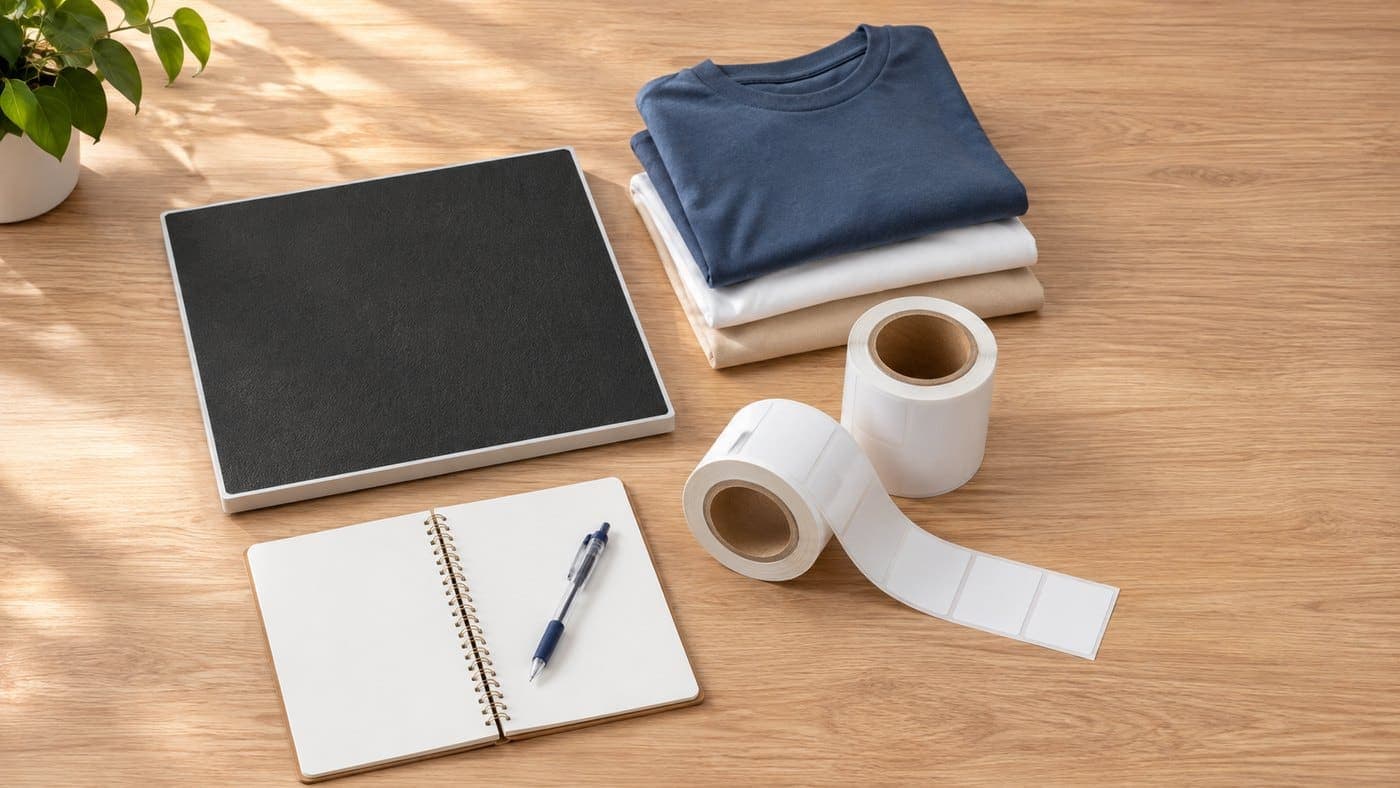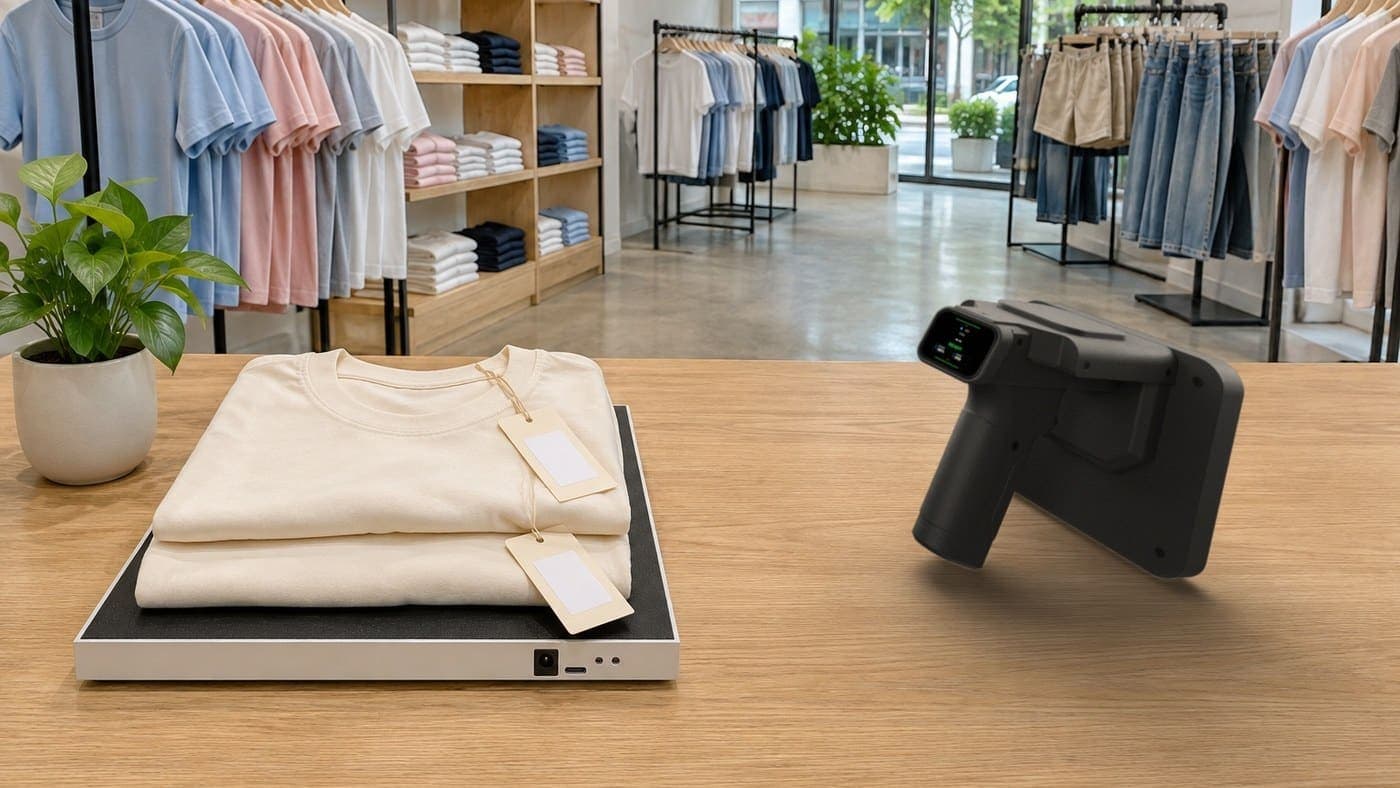
Open the box of an RFID kit and you'll find two devices. One has a trigger and you hold it like a pistol. The other is a flat black pad, a little bigger than a sheet of A4. So which one does what?
In short: the handheld scanner reads from a distance, so it's for counting stock and finding items. The desktop reader only reads what's sitting on it, so it's for receiving stock and sending it out. The kit isn't split this way just to fill the box. Each device reads in its own way, and that decides which jobs it's good at.
30-second summary
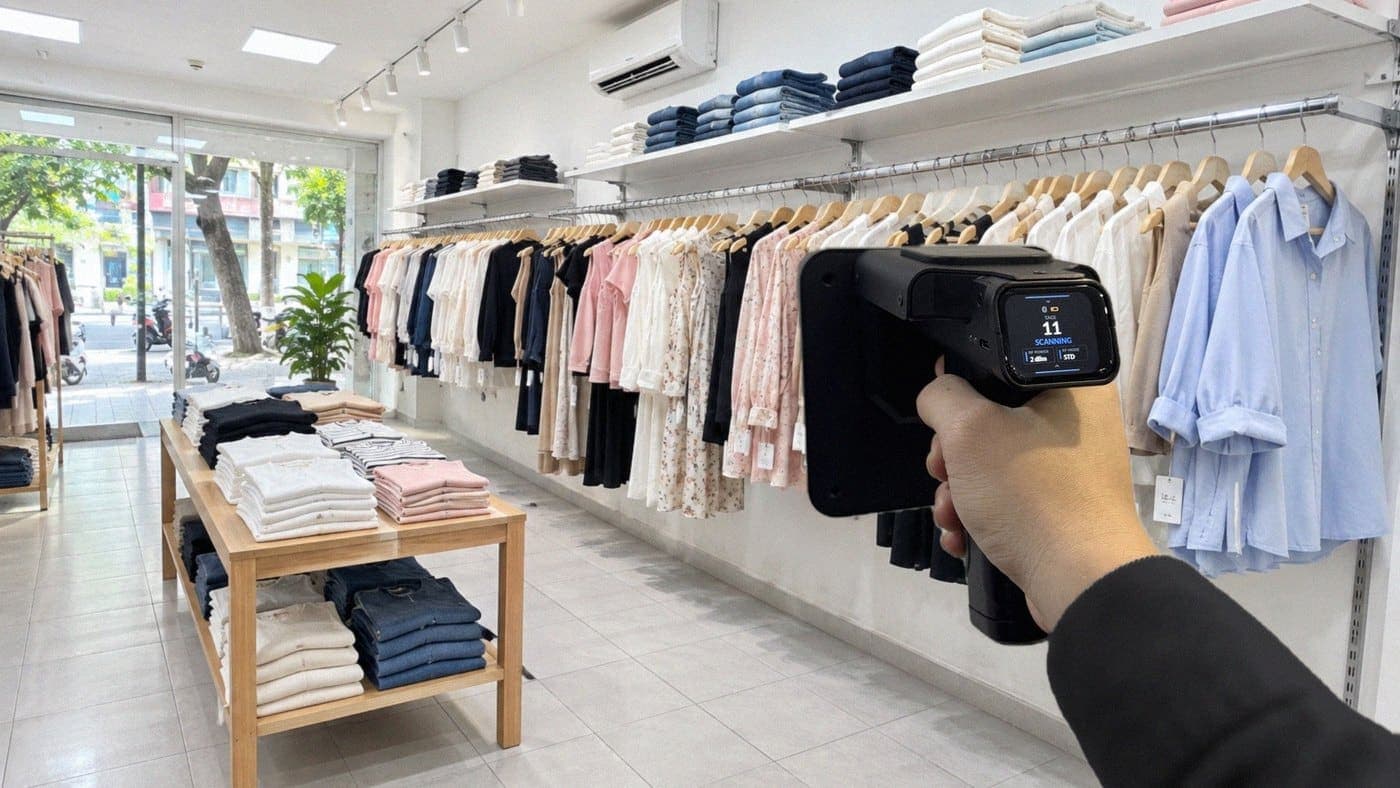
- The handheld reads from a distance and goes wherever you walk. Point it at a shelf, pull the trigger and it counts. Looking for one item? Follow the beep.
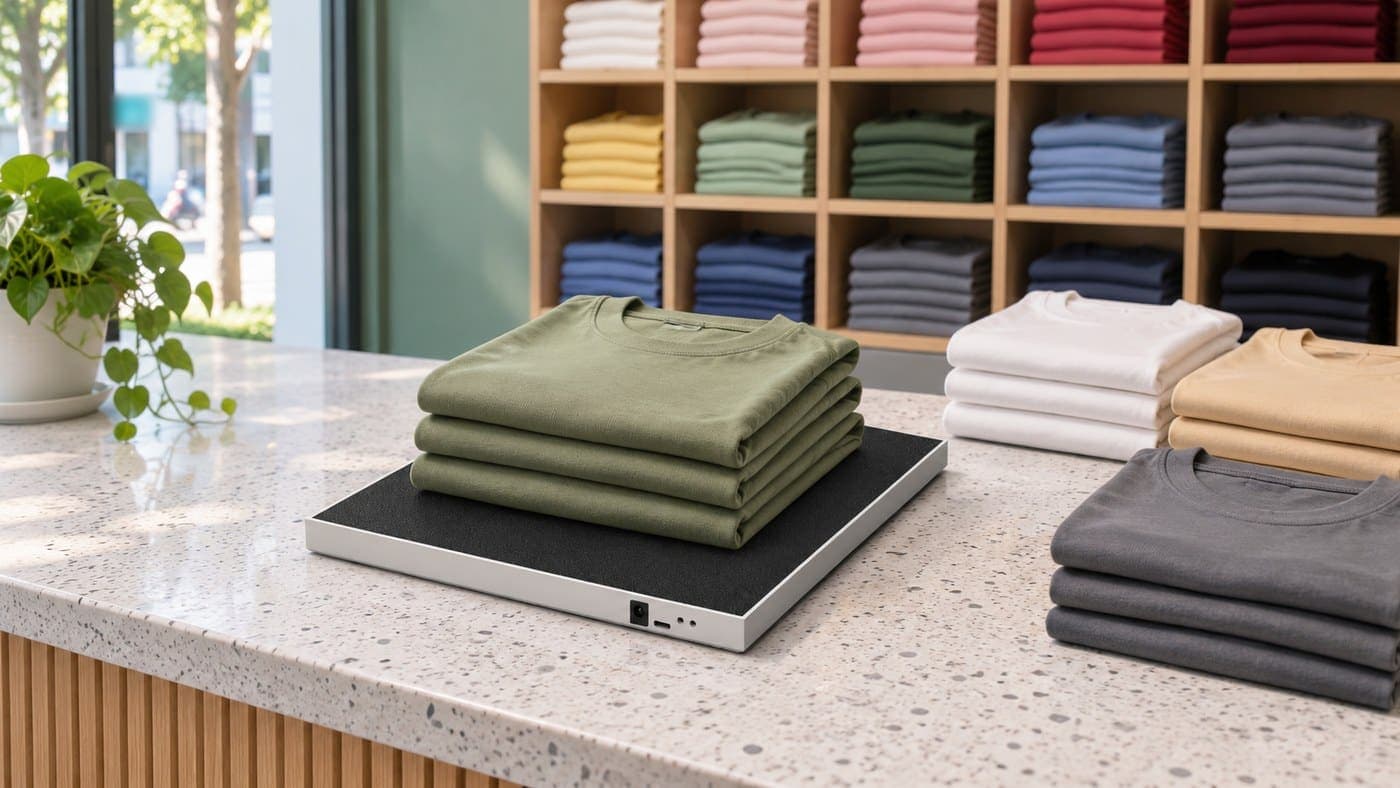
- The desktop reader only reads what's placed on it, so it rarely picks up the stock around it. When goods arrive, put them on it to receive them. When an order goes out, put it on to take it off stock.
- The handheld connects to a phone over Bluetooth. The desktop reader plugs into a computer by USB.
- The two can stand in for each other in a few cases, but you get more stray reads or more legwork.
How are the two devices different?
Both read RFID tags by radio. You don't need to see the tag, and you don't pass items through one by one like with a barcode: one sweep reads many items. What differs is how far they read.
The handheld reads far, up to 6 m depending on the tag and how the goods are stacked. Stand in front of a shelf, point the face of the scanner at it and pull the trigger, and it reads everything in range in one go. The desktop reader is the opposite. It only reads what sits on top of it, nothing further away. A shelf a few steps off is out of its reach. Something lying right next to it can still get read now and then, so when you receive or ship, keep only the batch you're working on on the reader.
Reading far suits jobs where you scan lots of goods sitting still on shelves: counting and finding. Reading close suits jobs where you need to know exactly which items are passing through your hands: receiving and goods out.
| Handheld scanner | Desktop reader | |
|---|---|---|
| How it reads | Far, up to 6 m depending on the tag | Only what's placed on it |
| Used for | Counting, finding items | Receiving, goods out |
| Where it lives | Carried around the shop and stockroom | Fixed at the counter or receiving table |
| Connects to | A phone, over Bluetooth | A computer, by USB |
| Software | Sense Inventory app on the phone | Sense Inventory web app in Chrome or Edge |
Handheld RFID scanner: counting and finding items
Counting: point at the shelf, pull the trigger
Counting by hand means taking each item out, writing it down and adding it all up afterwards. With the handheld, you open a count session on the phone, point the scanner at the shelf and pull the trigger. It beeps and starts reading, and the number of tags read climbs on the small screen on the back of the scanner and on the phone. Then you work your way along each shelf.

For a complete count, remember two things. First, follow a fixed route, say left to right and top to bottom, so you know which areas are done and which aren't. Second, keep a steady pace: sweep too fast and you'll miss tags. If the scanner is picking up an area you don't want to count, turn the power down. In one fashion customer's stockroom, counting 3,000 products took about 15 minutes, with one person. How fast it goes depends on the goods and how the stockroom is laid out.
When you're done, the software compares the tags read with the stock on record and shows what's missing and what's extra. The whole count from start to finish is in RFID stock counts for fashion retail.
Finding an item: follow the beep
A customer at the counter asks: "Do you still have this top in a medium, in beige?" The software says there's one left. You go to the medium shelf and it isn't there. Someone has probably put it back in the wrong place.
So you pick that item on the app's find screen, start the search and follow the beep. Each time it reads the tag, the scanner turns its own power down, so you have to get closer to hear the next beep. Keep going and it leads you right to the top.

Desktop RFID reader: receiving and goods out
Receiving: stock arrives, put it on the reader
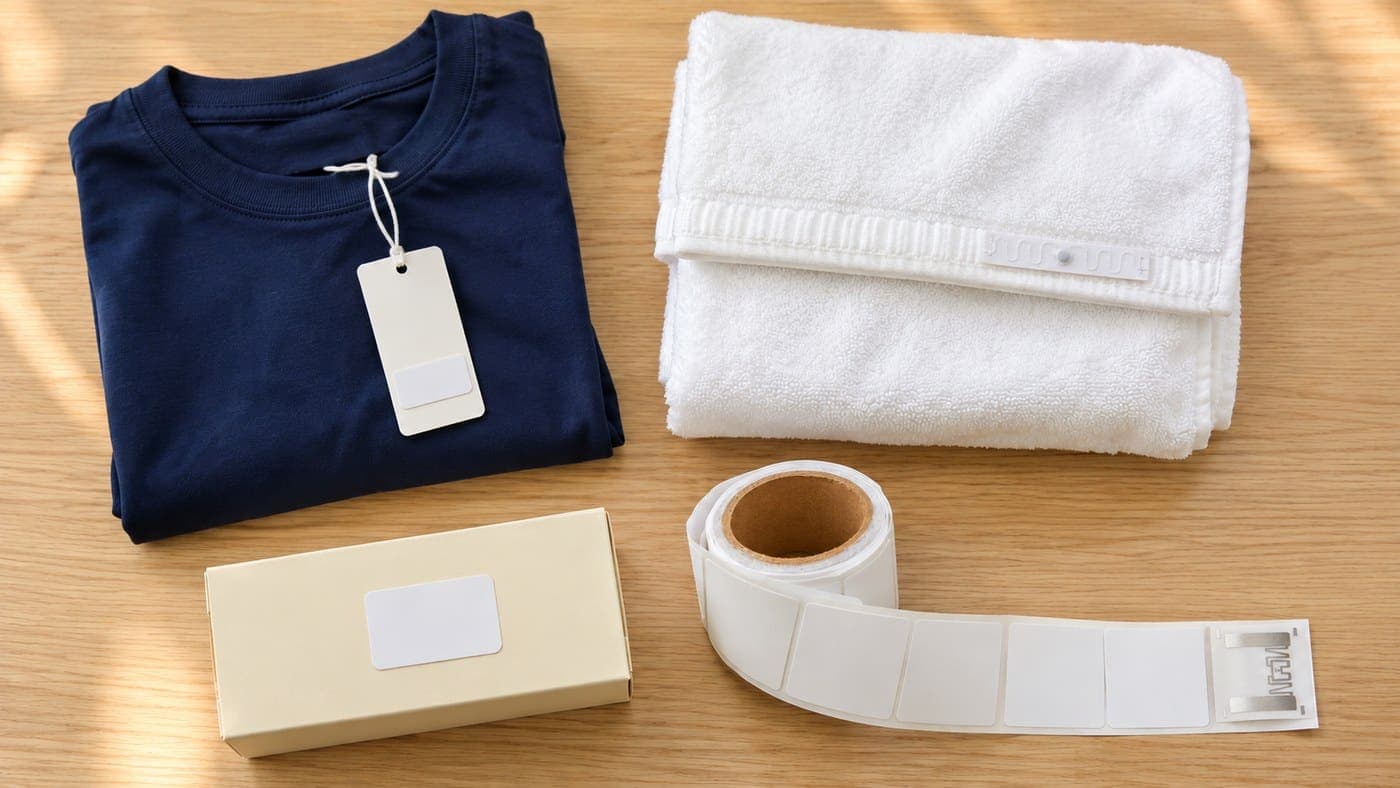
New stock arrives, each item already tagged. On the stock-in form, pick the right product, colour and size, turn on auto scan, then put the items of that product, colour and size on the reader. Every tag has its own code, so each tag read becomes one item in stock, linked to the product you just picked. This is also where you "assign" the tag: from now on, that tag stands for that exact top.

Why give this job to the desktop reader? Because when you receive, you need to be sure only the items on the reader go onto the form. The desktop reader only reads what's on top of it, so stock on the shelves around it rarely slips in. Keep only the batch you're receiving on the reader, and move other goods and loose tags away. When one product is done, turn the scan off before you pick the next product and put its items on. Before you finish, compare the count on screen with what you actually received. If they don't match, check whether an item wasn't read, or a stray tag got read.
Goods out: an order comes in, put it on the reader
An order needs to go out. You pick the goods, put them on the reader and each item appears in the goods-out list. Before you finish, check the list against what's actually on the reader and remove any extra line.
When you scan exactly the items that are leaving, stock comes off for those very pieces, by each tag's own code, not just any piece of the same style. So each item's in-and-out history matches what really happened.

The desktop reader plugs into a computer by USB and runs the Sense Inventory web app in Chrome or Edge. So put it where there's a computer: the counter, the receiving table or the packing table.
A day in the shop: which device, when?
Put it all together over a normal day in the shop and you'll see the two devices don't get in each other's way:
| When | What you do | Which device |
|---|---|---|
| New stock arrives | Receive it product by product | Desktop reader |
| A customer asks for an item | Check stock in the software, find it on the shelf | Handheld scanner |
| An order needs to go out | Put the goods on the reader, check the list, take them off stock | Desktop reader |
| End of the week or month | Count the whole shop or one area | Handheld scanner |
Can they swap jobs?
Yes, in a few cases. But every swap adds one more thing to watch.
Using the handheld to receive or ship. The Sense Inventory phone app can do stock in and stock out, so when you're away from the computer you can still use the handheld. But it reads far: receive goods right next to a shelf and it can easily pick up the tags on that shelf too. If you work this way, turn the power down, take the goods to a clear spot and check the list carefully before you finish.
Using the desktop reader to count. Fine for anything you can carry to the table, like a basket of goods or a tray of accessories. For a whole shelf or the whole stockroom, walking around with the handheld is much faster.
Using the desktop reader to find items. Not a good fit. Finding means walking around the shop following the beep, and that's the handheld's job.
Common mistakes when you're starting out
| Mistake | What happens | What to do instead |
|---|---|---|
| Receiving with the handheld right next to a shelf | It picks up the tags on the shelf too and adds them to the form | Receive on the desktop reader. If you must use the handheld, turn the power down and take the goods to a clear spot |
| Switching to another product without turning the scan off | Items of the next product land under the previous one | When one product is done, turn the scan off, pick the new product, then put its items on |
| Piling goods into one thick stack on the reader | Tags in the middle of the stack get missed | Spread the goods out on the reader and do it in several rounds |
| Leaving other goods or loose tags on or right by the reader | Unrelated tags end up in the list | Keep only the batch you're receiving or shipping on the reader, and clear the space around it |
| Putting the reader straight on a large metal table | Patchy reads | Put it on a surface that isn't metal |
| Sweeping the handheld fast and wandering around | Missed tags, areas scanned twice | Keep a steady pace along a fixed route |
What do you need to use the two devices?
- For the desktop reader: a computer with Chrome or Edge, and a power socket nearby. The reader plugs into the computer by USB to send data, and into the wall with the power adapter in the box.
- For the handheld scanner: an iPhone or Android phone with the Sense Inventory app installed and Bluetooth on. Charge the scanner fully before a count. The scanner connects to one phone at a time.
- Not in the kit: the computer, the phone and a label printer. The tags in the kit come pre-encoded. Once they're on the goods, you assign each tag to its product at the receiving step above.
The kit comes with both devices
The Nextwaves retail starter kit costs $1,199 for the full kit, excluding VAT. In the box:
- 1 handheld RFID scanner that connects to a phone over Bluetooth.
- 1 desktop RFID reader that plugs into a computer by USB.
- 2,500 RFID tags, enough for 2,500 products.
- Sense Inventory Essentials stock software, $0 a month.
Nextwaves makes both devices, and both carry Vietnam's conformity certification. The price includes free shipping in Vietnam, setup support, training at handover with guides and videos, phone and chat support after handover, and a 12-month device warranty.
Not sure where the two devices should go in your shop, or whether you need another handheld? Answer 9 questions on the kit page, which takes about 30 seconds, or fill in the form below and Nextwaves will advise you based on your size and the goods you sell.
Frequently asked questions
Do I need both devices?
If your shop receives stock often and you want fast counts, yes. Without the desktop reader, receiving and goods out have to be done with the handheld, which picks up stock on the shelves more easily. Without the handheld, counting means carrying the goods to the table. That's why the kit always has both.
How far does the handheld read?
Up to 6 m, depending on the tag, how it's attached, what the goods are made of and the power setting. For a count you don't need to stand that far back: walk along the shelf with the scanner facing the goods. For goods near metal or liquids, or in thick stacks, scan from a few more angles.
My shop is big. Is one handheld enough?
Several scanners can work in the same count session, so a big shop, or one with its own stockroom, can split the count by area. To buy more scanners, ask Nextwaves.
Can I count stock without Wi-Fi?
Yes. The Sense Inventory phone app can count with no connection. When you're back online, the results sync.
What's in the free software?
Sense Inventory Essentials is stock software at $0 a month with the core stock features: assigning tags to products, stock in, stock out, RFID counts and item finding, and viewing stock on a computer and a phone. Sales, invoices and customers stay in the sales software you already use.